
An ergonomic workstation setup arranges your chair, desk, monitor, keyboard, and mouse so your body maintains a neutral, supported posture throughout the working day. Under the UK's DSE Regulations 1992, employers must assess each workstation for musculoskeletal, visual, and stress risks, reduce those risks so far as reasonably practicable, and provide training and eye tests. The process starts with adjusting the chair to the user's body, then configuring desk height, screen position, and input devices around that baseline.
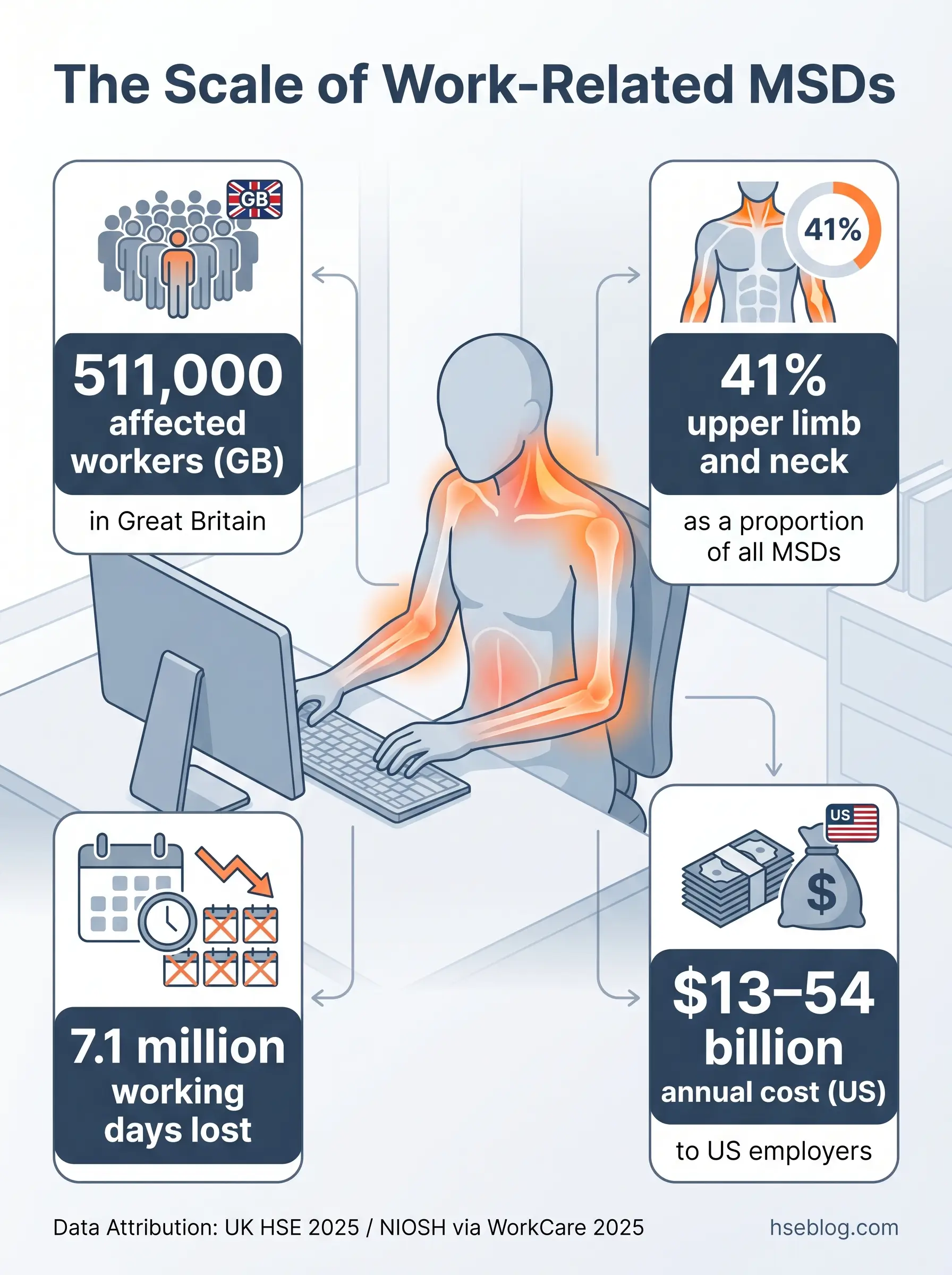
In 2024/25, 511,000 workers in Great Britain were suffering from a work-related musculoskeletal disorder (UK Health and Safety Executive, 2025). That figure dropped slightly from the prior year — which sounds like progress until you look at new cases: those actually increased, from 168,000 to 173,000 (UK HSE, 2025). Existing injuries are being managed. New injuries are not being prevented. Upper limb and neck disorders — the category most directly tied to screen work and workstation configuration — now account for 41% of all work-related MSDs, up from 37% the previous year (HSE, 2025). The pattern points in one direction: more people are working at screens, and too many of those screens sit on poorly configured workstations.
This article provides a component-by-component guide to setting up a DSE workstation that actually controls musculoskeletal, visual, and fatigue risk — not just on paper, but in the way the setup holds up across real working days. Every recommendation is anchored in the specific regulatory clause or ergonomic standard it satisfies, with explicit coverage of UK, EU, and US requirements so readers across jurisdictions can identify which obligations apply to them. Whether you are an HSE professional conducting assessments, an office manager equipping hybrid workers, or someone trying to sort out your own home desk, the principles are the same. The setup must fit the person. Not the other way around.
This article provides general HSE knowledge on ergonomic workstation setup. It does not replace a formal, individualised DSE risk assessment conducted by a competent person, and is not a substitute for occupational health advice for pre-existing musculoskeletal or visual conditions.
What Is DSE and Why Does Ergonomic Workstation Setup Matter?
Display Screen Equipment — DSE — covers any device with a screen used as a significant part of normal work. That includes desktop monitors, laptops, tablets, and smartphones when they are used regularly and for sustained periods. The traditional image of DSE is a desktop computer on an office desk, but modern work patterns have stretched the definition well beyond that. A sales representative answering emails on a tablet for two hours each morning is a DSE user. A hybrid worker spending their home days on a laptop at a kitchen table is a DSE user. The regulatory scope catches the work pattern, not the device category.
The reason ergonomic workstation setup matters is not abstract. When a workstation forces the body into sustained awkward postures — neck flexed to look down at a low screen, wrists extended over a tilted keyboard, shoulders raised because a mouse sits too far from the body — the cumulative load on soft tissues builds over weeks and months. The result is musculoskeletal disorder: back pain, neck pain, shoulder and arm conditions, wrist and hand injuries including carpal tunnel syndrome and tendinitis.
The numbers confirm the scale. In Great Britain, 7.1 million working days were lost to work-related MSDs in 2024/25, averaging 14 days per affected worker (UK HSE, 2025). In the US private sector, 937,620 MSD DART cases were recorded in 2023–2024, including 484,620 cases requiring days away from work (US Bureau of Labor Statistics via National Safety Council, 2026). Work-related MSDs cost US employers an estimated $13 billion to $54 billion annually when direct medical costs, compensation, lost productivity, and retraining are combined (NIOSH via WorkCare, 2025).
A common pattern across organisations is treating "having a screen and a chair" as a complete workstation. In practice, it is the interaction between all components — and the individual user's body dimensions — that determines whether the setup creates or controls risk. A monitor at the correct height for one person may force neck flexion in someone fifteen centimetres shorter. A chair that supports the lumbar curve of a 180 cm user may leave a 160 cm user's feet dangling. Ergonomic setup is not a single configuration. It is a process of matching the workstation to the person.
Who Is a DSE User? Understanding Legal Definitions
The threshold for being classified as a DSE user is lower than most people assume. Under the UK's DSE Regulations 1992, a user is someone who habitually uses display screen equipment as a significant part of their normal work for continuous spells of an hour or more. The EU's Directive 90/270/EEC uses similar language: workers who habitually use display screen equipment as a significant part of their normal work. In the US, OSHA has no specific DSE standard, but the General Duty Clause (Section 5(a)(1), OSH Act 1970) requires employers to maintain workplaces free from recognised hazards — and ergonomic hazards at computer workstations are well-recognised.
The question of whether tablets and smartphones fall within scope comes up frequently. The answer, under both UK and EU frameworks, is yes — if the device has a display screen and is used regularly for extended work tasks such as email, data entry, or video calls, it is covered. OSHA's Computer Workstation eTool extends its guidance to any computer workstation regardless of device type.
An increasingly common scenario is the worker who claims they are "not really a DSE user" because they move between devices and locations — a laptop at a hot desk, a tablet during a commute, a smartphone between meetings. In practice, cumulative screen time across these devices almost always meets the one-hour threshold. The regulatory question is not whether any single device is used for an hour, but whether the worker's pattern of screen use, taken together, qualifies.
| Requirement | UK (DSE Regulations 1992) | EU (Directive 90/270/EEC) | US (OSHA) |
|---|---|---|---|
| Specific DSE standard | Yes — dedicated regulations | Yes — dedicated directive | No — General Duty Clause applies |
| DSE user definition | Habitual use, 1+ hour continuous | Habitual use, significant part of work | No formal definition; guidance-based |
| Workstation assessment | Mandatory, recorded | Mandatory per directive | Recommended via eTool, not mandated |
| Eye test provision | Employer must provide and fund | Employer must provide | No requirement |
| Break/activity change | Employer must plan into work | Employer must plan into work | Recommended, not mandated |
Jurisdiction Note: The structural difference matters. UK and EU employers face specific, prescriptive duties they can be prosecuted for breaching. US employers face a broader duty under the General Duty Clause, with detailed voluntary guidance through OSHA's Computer Workstation eTool but no DSE-specific enforcement standard.
Employer Duties and Legal Requirements for DSE Workstations
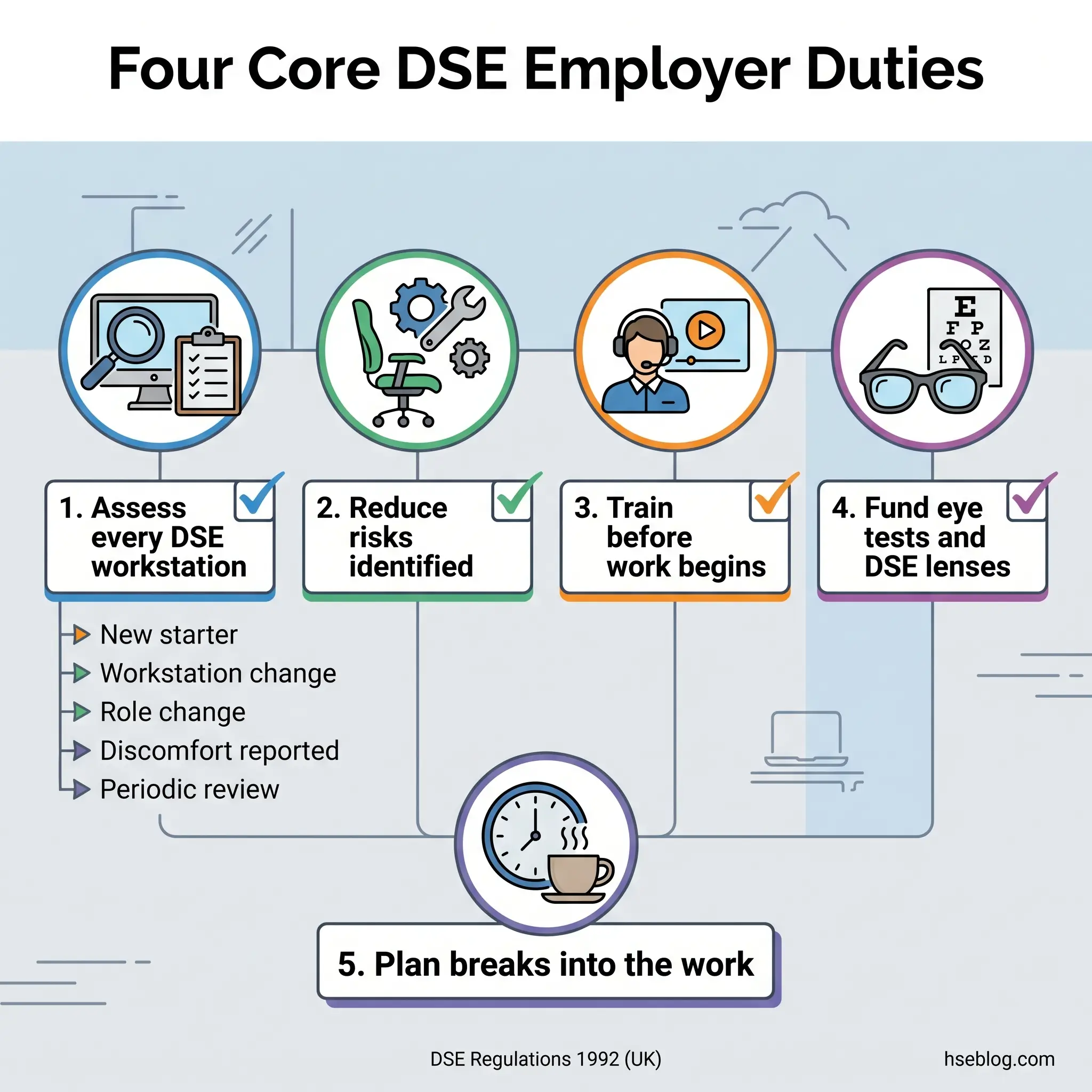
Under the Health and Safety (Display Screen Equipment) Regulations 1992 (as amended 2002), employers in the UK carry four core duties toward DSE users. These are not optional good practices — they are legal requirements enforceable by the HSE.
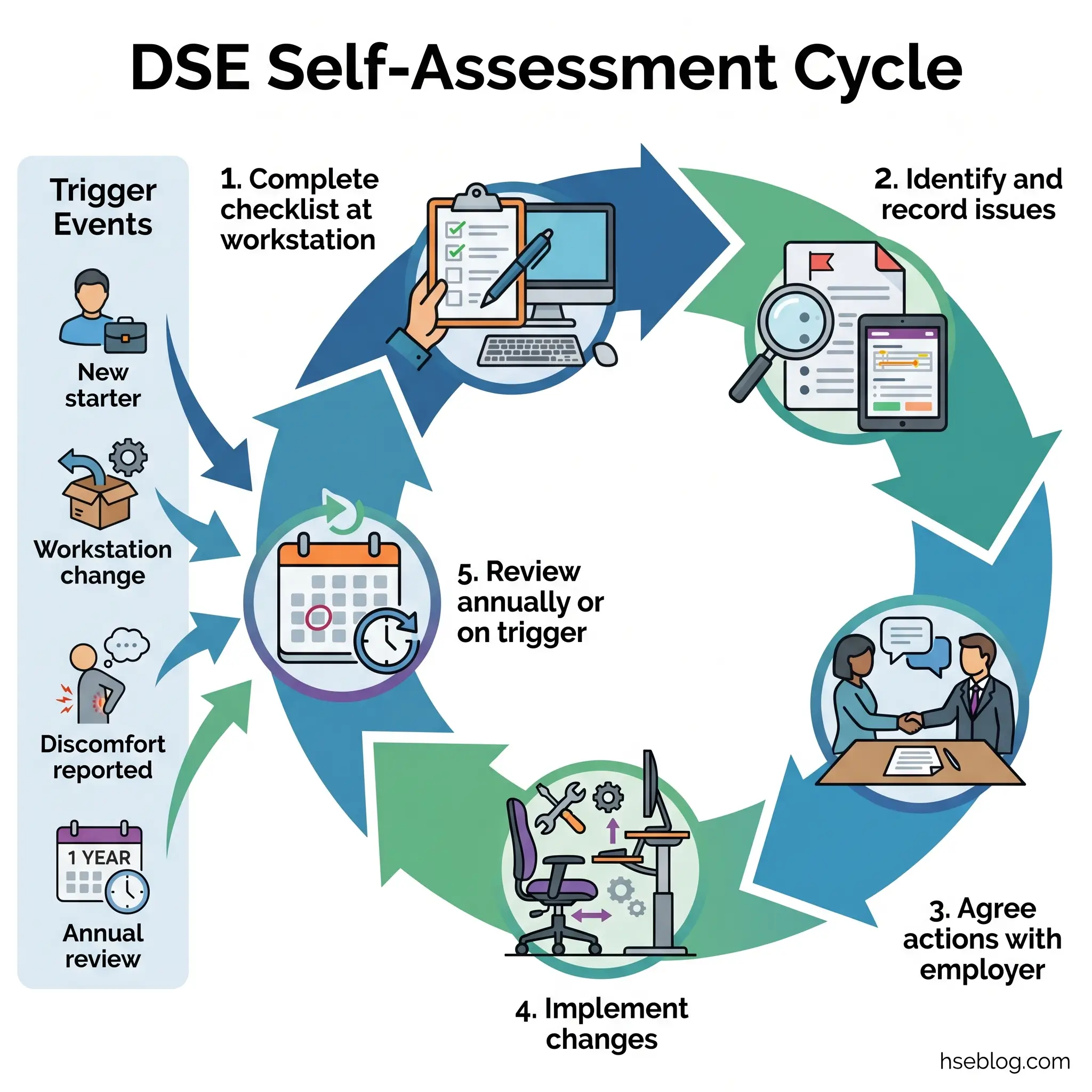
The duty to assess. Employers must perform a suitable and sufficient analysis of each DSE workstation to assess and reduce risks to health. The assessment must cover the display screen, keyboard and input devices, work surface and furniture, working environment (lighting, noise, heat), and the software interface. The HSE's own workstation checklist (CK1) provides the standard framework, covering six risk-factor areas with a yes/no format and action-planning space. Assessment triggers include new starters, workstation changes, role or work-pattern changes, reports of discomfort, and periodic review — HSE recommends at least annually.
The duty to reduce risk. Identifying a risk is not the endpoint. The regulations require the employer to reduce risks to the lowest extent reasonably practicable. If the assessment finds the monitor is too low, the employer must provide a riser or adjustable arm. If the chair lacks lumbar support, the employer must replace or supplement it. The most common compliance gap in practice is not the absence of an assessment but the absence of follow-through — assessments completed, findings documented, recommendations never actioned.
The duty to inform and train. Employers must provide DSE users with adequate health and safety training before they start DSE work and whenever the workstation or work pattern changes significantly. Training must cover the risks, the controls, and how to adjust the workstation.
The duty to provide eye tests and corrective lenses. On request from a DSE user, the employer must arrange and pay for an eye and eyesight test by a competent person (typically an optometrist). If the test identifies a need for corrective lenses specifically prescribed for DSE use — that is, for the intermediate screen-distance focal range — the employer must contribute to the cost of those lenses. Standard prescription glasses are not covered unless the prescription includes a specific DSE-distance correction.
Under the EU's Directive 90/270/EEC, member states implement equivalent requirements through national legislation. The directive mandates workstation analysis, risk reduction, training, eye tests, and work planning to include breaks or activity changes. The European Commission's 2021–2027 Strategic Framework on Health and Safety at Work has identified the need to review whether this 1990-era directive — originally drafted for desktop CRT monitors — adequately covers modern working patterns involving laptops, tablets, multi-screen setups, and multi-location work.
In the US, the absence of a specific OSHA DSE standard means employers have no prescriptive checklist obligation. However, the General Duty Clause requires workplaces free from recognised hazards likely to cause serious harm. OSHA's Computer Workstation eTool provides detailed, component-by-component guidance on neutral body positioning, equipment selection, and environmental factors — voluntary but authoritative.
DSE Obligations for Home and Hybrid Workers
HSE guidance is unambiguous: the same DSE duties apply to employees working from home when they use display screen equipment for an hour or more as part of their normal work duties. This is not a grey area. If a hybrid worker spends three days a week at a home desk, that home workstation must be assessed, risks must be reduced, and the employer must provide or fund equipment needed to control DSE risk.
Self-assessment is an accepted method for home workers, provided the worker has received training or clear guidance on how to use the assessment checklist properly. For hybrid workers, both locations — office and home — require assessment.
The practical tension is real. Many home environments lack space for a dedicated desk, a proper office chair, or the clearance to position a monitor at the correct distance. A kitchen table is typically too high for comfortable typing. A sofa offers no back support. A bed creates the worst combination of postures. Minimum practical requirements for a home DSE setup include a laptop riser or stand to bring the screen to eye level, an external keyboard and mouse, and a chair with adjustable height and some form of lumbar support. Employers cannot charge workers for this equipment.
Watch For: The pattern where home workers complete self-assessments honestly, flag a genuine constraint — no space for a separate desk, table at the wrong height — and the employer records it as "noted" without any action. The assessment then serves as documentation of a known, uncontrolled risk rather than evidence of compliance.
How to Set Up an Ergonomic DSE Workstation: Component-by-Component Guide
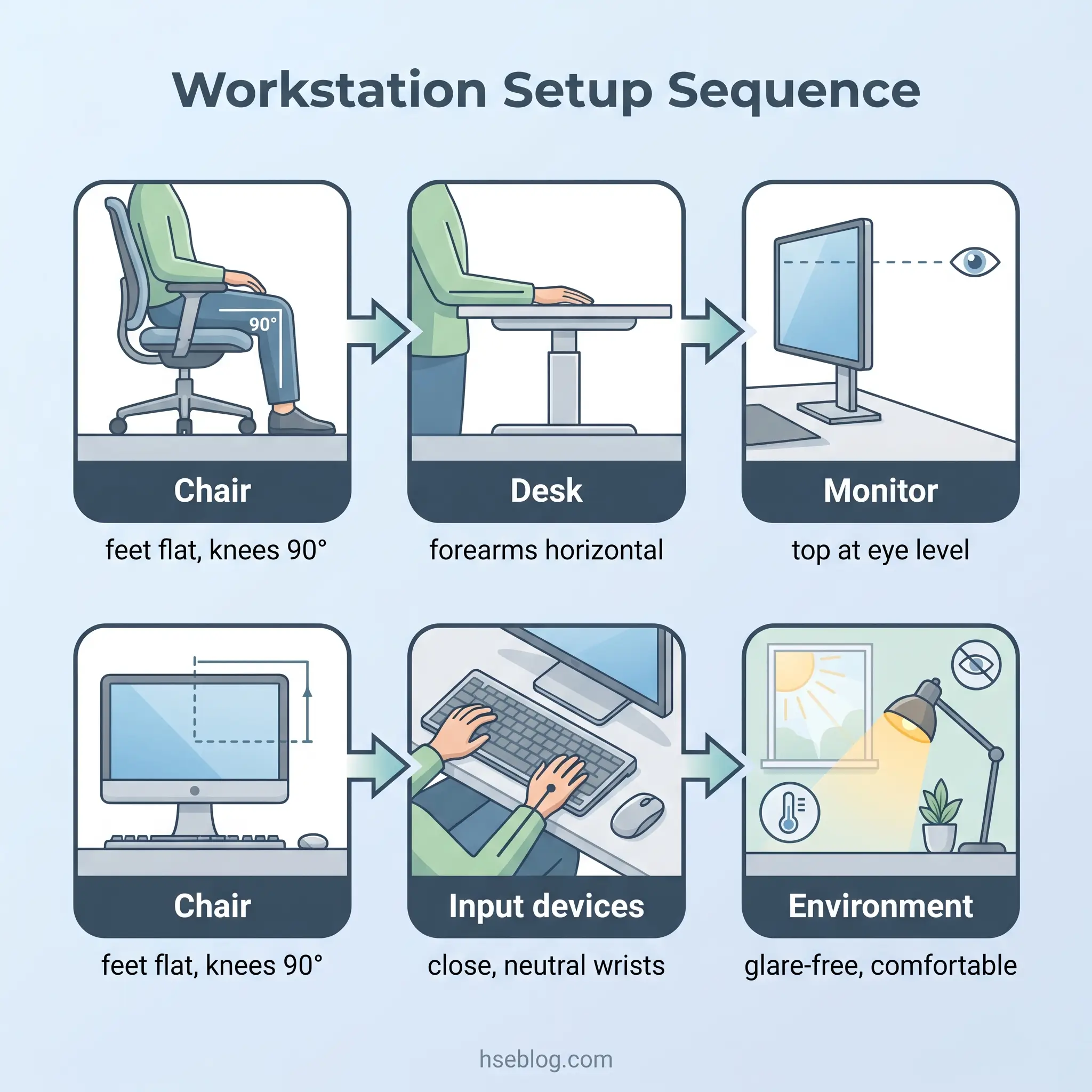
Workstation setup follows a deliberate sequence: chair first, then desk, then monitor, then input devices, then environment. Each component builds on the one before it. If you start with the monitor and work backward, you end up adjusting the chair to suit the screen rather than the screen to suit the body — which inverts the entire ergonomic logic.
The foundational principle is neutral body positioning — OSHA's Computer Workstation eTool uses this term, and it captures the goal precisely. A neutral posture is one where the joints are naturally aligned, muscles are at resting length, and no body segment is held in a sustained awkward position. Two people at identical desks may require entirely different configurations to achieve this. Setup must be individualised, not standardised.
Chair Setup and Adjustment
The chair is the foundation because it determines the height relationship between the user's body and every other component.
- Seat height. Adjust so your feet rest flat on the floor, knees at approximately 90 degrees, and thighs horizontal or declining very slightly toward the knees. If achieving the correct height for the desk surface leaves your feet unsupported, use a footrest rather than compromising your seated position.
- Seat depth. Slide back until your lower back contacts the backrest, then check the gap between the front edge of the seat and the back of your knees. You need approximately 2–3 cm of clearance. If the seat pan is too deep, the front edge presses into the back of the knees, restricting blood flow. If it is too shallow, it does not support the thighs adequately.
- Lumbar support. Position the lumbar support — whether built into the backrest or a separate cushion — at the natural inward curve of your lower back. This is typically at belt height, not mid-back. The support should maintain the spine's natural lordotic curve without pushing you forward.
- Armrests. If the chair has armrests, adjust them so your forearms rest lightly with shoulders relaxed — not shrugged upward, not pressing elbows into your sides. If armrests prevent you from sitting close enough to the desk, consider lowering or removing them.
- Dynamic sitting. Unlock the chair's tilt mechanism rather than locking the backrest into a fixed position. The body is not designed for hours of static posture. Allowing the backrest to move with you through a small range encourages postural micro-changes that reduce sustained loading on the spine. The HSE's guidance on good posture for DSE users specifically recommends this approach.
Field Test: Sit in your adjusted chair with your arms hanging relaxed at your sides. Bend your elbows to 90 degrees. Your forearms should be roughly level with the desk surface. If they are above the desk, the chair is too high or the desk is too low. If they are below, the opposite.
Desk and Work Surface Setup
With the chair correctly configured, the desk surface should sit at approximately seated elbow height — allowing forearms to rest horizontally when typing, with shoulders relaxed and not elevated.
- Desk height alignment. If your desk is height-adjustable, set it so your forearms are parallel to the floor when your hands are on the keyboard. If the desk is fixed and too high, raise the chair and add a footrest. If it is fixed and too low, desk risers can bridge the gap, though this is less common.
- Under-desk clearance. A minimum of approximately 5 cm (2 inches) of clearance between the top of your thighs and the underside of the desk is necessary to allow free leg movement and posture changes. Under-desk obstructions — CPU towers, cable bundles, storage boxes, heaters — are one of the most overlooked constraints. They restrict movement and force the user into a narrower range of postures.
- Surface area. The desk must accommodate the monitor, keyboard, mouse, and any documents or reference materials without cluttering the input zone. Cramped surfaces force the mouse further from the body, increasing shoulder reach.
- Sit-stand desks. If you use a sit-stand desk, the benefit lies in alternation — not in replacing sitting with standing. Alternate between positions every 30–60 minutes. When standing, the same principles apply: screen at eye level, elbows at approximately 90 degrees, weight evenly distributed. Standing for extended periods without variation introduces its own risks, including lower limb fatigue and increased load on the lower back.
BS EN ISO 9241-5:2024 sets standards for work surface dimensions and chair adjustability that generally exceed minimum regulatory requirements — useful as a benchmark if specifying furniture for a new office fit-out or a procurement cycle.
Monitor Positioning
After chair and desk, the monitor position determines neck and eye posture for the entire working day.
- Distance. Place the screen at approximately arm's length — typically 50–70 cm from the eyes. At this distance, you should be able to read standard text without leaning forward.
- Height. The top edge of the screen should sit at or slightly below natural eye level. This allows a slight downward gaze of about 15–20 degrees, which is the most comfortable viewing angle for extended work.
- Tilt. A slight backward tilt of 10–20 degrees reduces glare from overhead lighting and supports the natural downward gaze angle.
- Centring. The screen should be directly in front of you — not offset to one side. Sustained neck rotation to view an off-centre screen is a reliable path to neck and shoulder pain.
- Dual monitors. If you use two screens equally, angle them symmetrically in a shallow V with the join centred on your body. If one screen is primary, centre that screen directly in front of you and angle the secondary screen toward you on the preferred side.
- Bifocal and progressive lens wearers. Standard advice places the top of the screen at eye level. For bifocal or progressive lens wearers, this forces the head to tilt backward to use the reading segment. Lower the monitor so the screen centre — not the top — sits at eye level, or slightly lower. This is one of the most commonly missed adjustments.
The Fix That Works: For laptop users, the single highest-impact change is a laptop riser or stand that brings the screen to eye level, paired with a separate keyboard and mouse. Without this, the laptop forces a direct trade-off: either flex the neck down to see the screen or raise the screen and extend the wrists to reach the built-in keyboard. Neither option is acceptable for prolonged use.
Keyboard, Mouse, and Input Device Positioning
Input device placement governs wrist, forearm, and shoulder posture — three areas where sustained awkward positioning causes some of the most common DSE-related injuries.
- Keyboard centring. Place the keyboard directly in front of you, with the B key (or the split point on a split keyboard) aligned with your body's centreline. An off-centre keyboard forces one arm to reach further than the other, creating asymmetric shoulder loading.
- Keyboard tilt. Retract the keyboard's flip-out feet. This is counter-intuitive for many users, but raising the back of the keyboard creates a positive tilt that increases wrist extension — the opposite of what you want. A flat keyboard, or one with a slight negative tilt (front edge higher than back), keeps the wrists closer to a neutral position.
- Wrist posture. Wrists should be straight — not flexed upward, extended downward, or deviated sideways. If wrist rests are used, they are for resting the heels of the hands between typing bouts, not for bearing weight while actively typing. Typing with wrists pressed into a rest increases contact stress on the carpal tunnel.
- Mouse position. The mouse should sit immediately next to the keyboard at the same height, so you can reach it without extending the arm or abducting the shoulder. If the keyboard has a number pad on the right side, the mouse gets pushed further away — a compact or tenkeyless keyboard solves this for users who do not need the number pad frequently.
- Ergonomic alternatives. For users experiencing discomfort with a standard mouse, vertical mice reduce forearm pronation, and trackballs eliminate the shoulder movement associated with mouse travel. These are not universal solutions, but they address specific biomechanical issues that a standard mouse can aggravate.
Lighting, Glare, and Environmental Factors
The DSE Regulations' Schedule of minimum requirements covers lighting and environmental conditions explicitly, yet this section is routinely under-addressed in assessments.
The primary lighting goal is to illuminate the work area without creating glare or reflections on the screen. Position the monitor perpendicular to windows — not facing them (which creates background glare) and not backing onto them (which creates reflections on the screen surface). Adjustable blinds or window coverings should be available to attenuate direct sunlight.
Ambient lighting needs to be sufficient for reading paper documents without causing the screen to wash out. If the ambient light is low for screen comfort, a task light can illuminate documents without reflecting on the monitor. Screen brightness and contrast should be adjustable to match the ambient conditions — a screen set for a bright office will cause eye strain in a dimly lit home study.
Temperature and ventilation are DSE compliance factors that often surprise people. A room that is too cold causes hunching and shoulder tension as a postural compensation. A room that is too warm encourages slouching. Neither is trivial: they change body posture in ways that compound the load from a workstation that may be set up correctly in mechanical terms but is used in thermal discomfort.
Noise from equipment at the workstation — fans, hard drives, printers — should not be at levels that distract from concentration or disturb speech. This is more relevant in home environments where a loud desktop fan in a small room has proportionally more impact than in an open-plan office.
How to Conduct a DSE Workstation Self-Assessment
Self-assessment is a valid and widely used method for DSE compliance, provided it is done properly. The critical qualifier is that "properly" means the person conducting the assessment has been trained to recognise a problem — not simply asked to confirm their existing habits.
The HSE's workstation checklist (CK1) provides the standard framework, covering six risk-factor areas: keyboards and input devices, display screens, software usability, furniture, work environment, and individual factors (health conditions, visual needs, training). Each area uses a yes/no format with space to record actions needed.
The process should work as follows. The user completes the checklist at their actual workstation, during a normal working session — not from memory. For each item marked as unsatisfactory, the user records the specific issue and proposed action. The completed checklist goes to the employer or DSE coordinator, who must ensure the identified risks are addressed within a reasonable timeframe. Records should be retained and the assessment repeated at minimum annually, and additionally on any trigger event: new starter, workstation change, role change, discomfort report, or return from extended absence.
A useful rule of thumb from HSE data: approximately 5% of workers will require a more in-depth specialist ergonomic assessment. These are typically workers with disabilities, pregnant workers, those with pre-existing musculoskeletal or visual conditions, or those at anthropometric extremes (very tall or very short) whose needs fall outside the range of standard adjustable furniture.
The 20-20-20 rule is worth building into DSE training and self-assessment guidance: every 20 minutes, look at something approximately 20 feet (6 metres) away for 20 seconds. This relaxes the ciliary muscles that focus the eyes for near work and reduces visual fatigue. It is a widely recommended practice, not a regulatory requirement — but it is simple, free, and effective.
Audit Point: The value of self-assessment depends entirely on training quality. An untrained user will often tick "yes" to "Is your chair comfortable?" because they have adapted to their current setup — not because it is ergonomically sound. Adaptation and adequacy are not the same thing. If your organisation relies on self-assessment, invest in the training that makes it meaningful.
Common Ergonomic Mistakes in DSE Workstation Setup
Knowing the principles and applying them under real working conditions are different things. The following errors persist even in organisations that provide DSE training and conduct regular assessments — they represent the gap between knowledge and sustained practice.
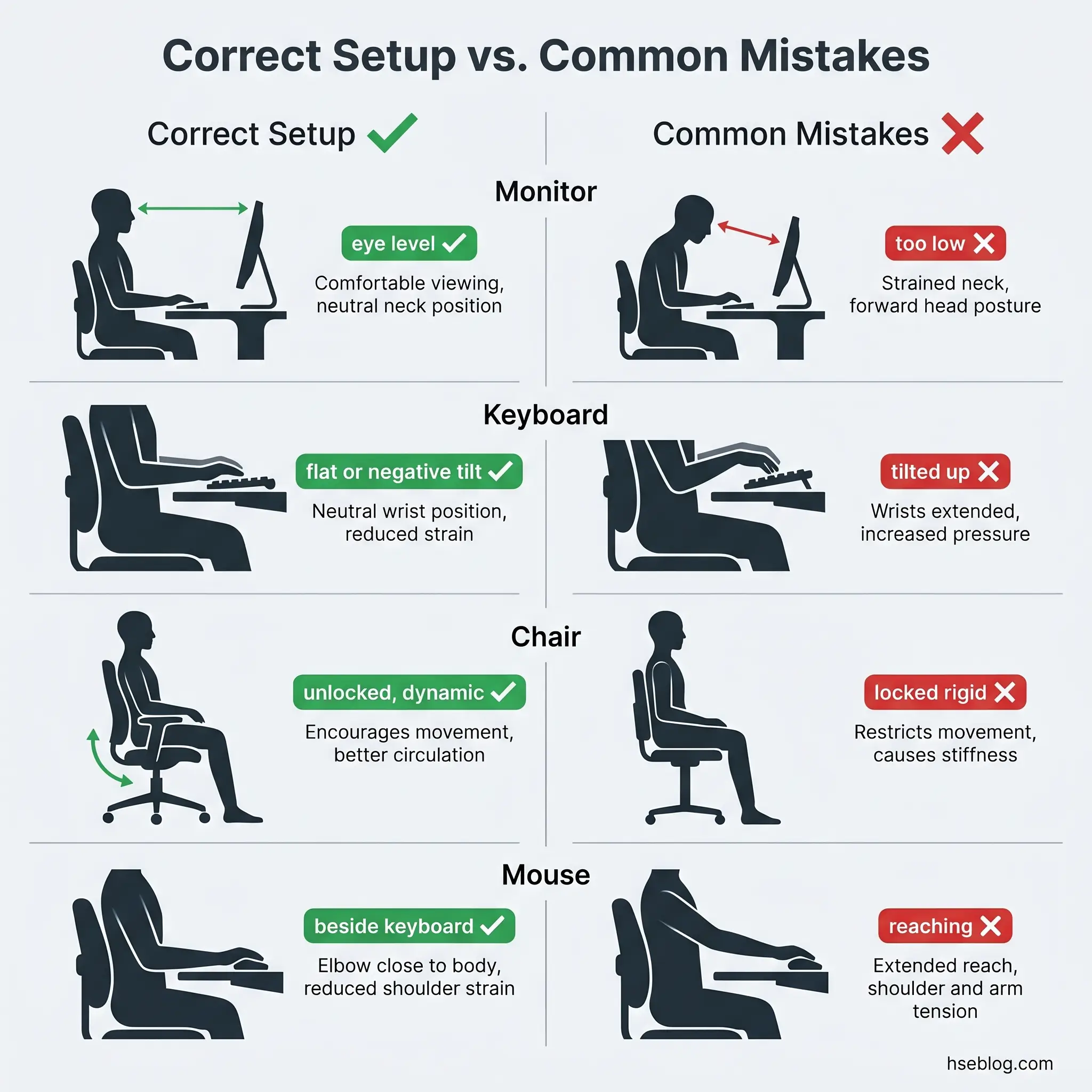
- Screen too low, especially on laptops. This is the single most prevalent ergonomic error in hybrid and home setups. A laptop screen sits 15–20 cm below the correct eye level, forcing sustained neck flexion. Without a riser and external peripherals, there is no solution — only a choice between neck strain and wrist strain.
- Chair locked in a fixed position. Many users lock their chair backrest upright and never touch the tilt mechanism again. This eliminates the postural micro-movements that reduce sustained spinal loading. The chair was designed to move. Locking it defeats its primary ergonomic function.
- Keyboard tilted upward. Extending the keyboard's flip-out feet creates a positive tilt that increases wrist extension — forcing the wrists into the exact posture that contributes to carpal tunnel strain. Most users deploy these feet reflexively, assuming "tilted up" equals "better." The opposite is true.
- Mouse too far from the body. When the mouse is placed beyond easy reach — pushed aside by papers, a phone, or simply positioned at the far edge of the desk — the shoulder abducts to reach it. Over hours, this sustained or repeated reach loads the shoulder and upper trapezius.
- No document holder. A worker referencing paper documents flat on the desk beside the keyboard must repeatedly rotate the neck to shift between document and screen. A document holder positioned between the keyboard and monitor, or adjacent to the screen at the same height, eliminates this repetitive neck rotation.
- Skipping breaks under workload pressure. Workers who know the guidance — and even agree with it — routinely skip breaks when deadlines press. This is not a knowledge gap. It is a work-design problem that DSE assessments should flag but rarely do.
- "Temporary" home setup becoming permanent. A setup that was acceptable for a few weeks of emergency remote work in 2020 often became the permanent workstation for years afterward without reassessment. If the setup was never formally assessed as a permanent workstation, the risk has been uncontrolled for the entire period.
The overarching pattern in all of these is what I would call setup drift. A worker configures their workstation correctly after training. Within two to four weeks, they gradually revert to habitual positions — the old chair height, the keyboard feet popped back up, the monitor shoved to one side to make room for papers. The familiar position feels more comfortable because the body has adapted to it, even when it is less ergonomic. Addressing drift requires periodic review, not one-off training. A follow-up check at four weeks and again at three months catches the reversion window.
What Are the Health Risks of Poor DSE Workstation Setup?
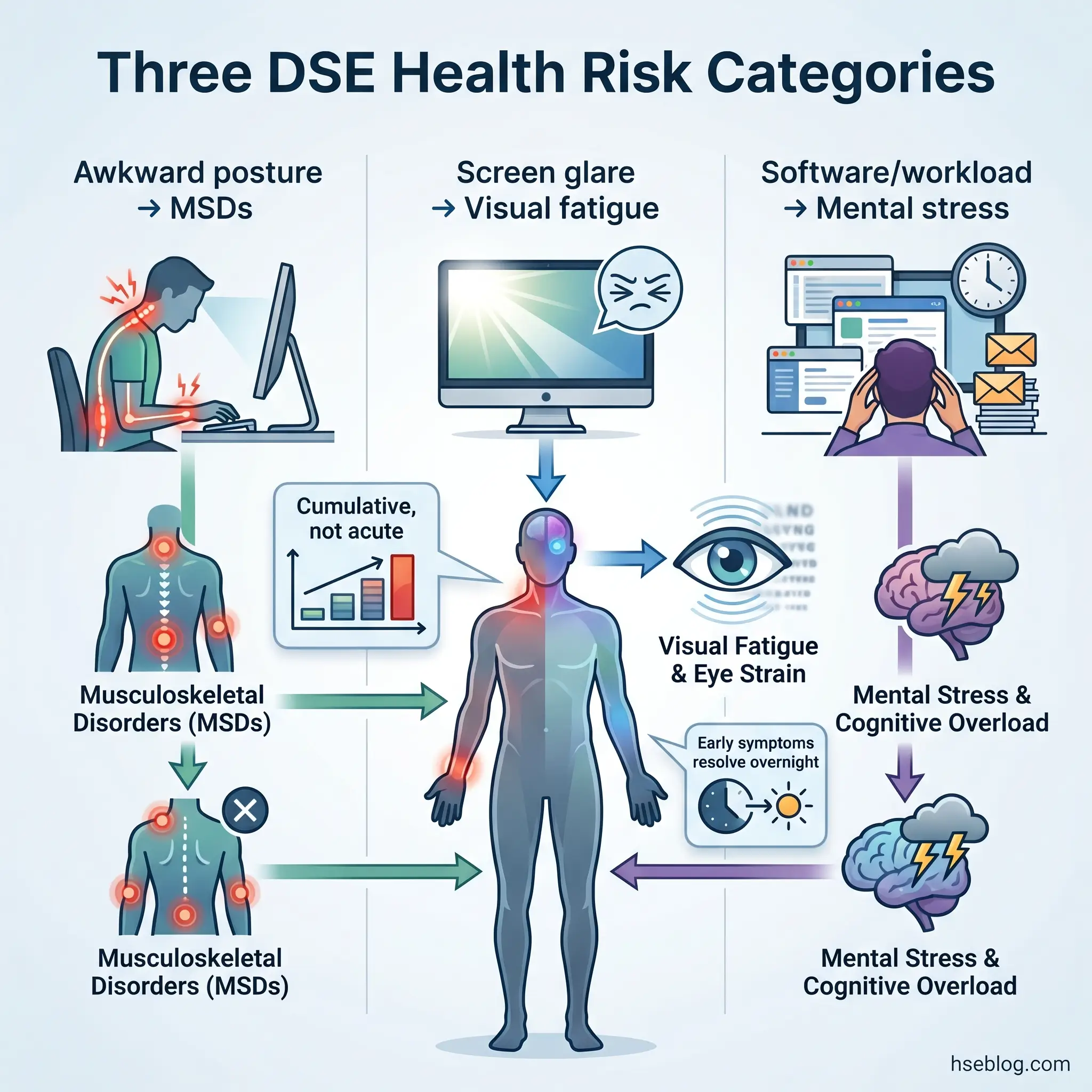
The DSE Regulations explicitly identify three categories of health risk: musculoskeletal disorders, visual fatigue, and mental stress. Each operates through a different mechanism and requires different controls.
Musculoskeletal disorders are the primary risk and the primary driver of lost working time. These include back pain (particularly lower back), neck pain, shoulder and upper arm pain, and wrist and hand conditions such as carpal tunnel syndrome, tendinitis, and tenosynovitis. MSDs from DSE work are cumulative — they develop from sustained exposure to awkward postures, static loading, and repetitive movements over weeks and months, not from a single acute event.
The most dangerous characteristic of DSE-related MSDs is that early symptoms — stiffness at the end of the day, mild aching in the neck or forearm — typically resolve overnight. The worker dismisses them as normal tiredness. The point at which symptoms no longer resolve between working days is often months into exposure. By then, the condition is established, harder to treat, and more expensive to manage. Early symptom reporting and prompt ergonomic intervention at the discomfort stage prevents progression to chronic injury.
Visual fatigue presents as eye strain, dry eyes, headaches, and temporary blurred vision. It is usually related to screen glare, incorrect viewing distance, poor ambient lighting, or prolonged focus without breaks. Unlike MSDs, visual fatigue from DSE work is typically temporary and resolves with proper setup adjustment and break patterns. The 20-20-20 rule, adequate screen-to-ambient brightness matching, and correct viewing distance address most cases.
Mental stress and fatigue are recognised in the DSE Regulations but routinely overlooked in workstation assessments. These relate to software usability (poorly designed interfaces that create frustration), excessive workload without task variation, and inadequate training on the systems in use. The assessment checklist includes software and task design for a reason — a perfectly configured physical workstation does not help if the software forces a pace or pattern of work that generates cognitive overload.
Content covering musculoskeletal disorders, visual fatigue, and related health conditions is for HSE practitioner reference. It is not medical advice. Workers experiencing persistent symptoms should consult an occupational health professional or their GP for assessment and diagnosis.
Frequently Asked Questions
Do DSE regulations apply to home workers?
Yes. Under the UK's DSE Regulations 1992, the same legal duties apply to employees using display screen equipment at home for continuous periods of an hour or more. Employers must assess home workstations, reduce identified risks, provide DSE training, and fund equipment needed to control ergonomic risk. Self-assessment is an accepted method when the worker has received adequate training on how to use the checklist. The employer cannot delegate the duty by treating the home setup as the worker's personal responsibility.
How often should a DSE assessment be repeated?
At minimum annually. Beyond that, a reassessment is triggered by any significant change: new starter, new workstation or location, change in role or work pattern, report of musculoskeletal discomfort, return from extended absence such as maternity leave or long-term sickness, or new health condition that affects workstation requirements. Assessments are living documents — they must reflect the current setup, not the one that existed twelve months ago.
Does my employer have to pay for glasses if I use a screen at work?
Under UK DSE Regulations, employers must provide and pay for an eye and eyesight test on request from any DSE user. If the test identifies a need for corrective lenses specifically prescribed for DSE work — typically for the intermediate screen-distance focal range — the employer must contribute to the cost. Standard prescription glasses used for general purposes are not covered unless the prescription specifically includes a DSE-distance correction. The employer can set a reasonable cost limit for frames.
What is the 20-20-20 rule for screen work?
Every 20 minutes, look at something approximately 20 feet (about 6 metres) away for 20 seconds. This relaxes the ciliary muscles that hold the eye's focus for near-distance screen work and reduces visual fatigue symptoms such as dry eyes, headaches, and blurred vision. It is a widely recommended practice among ergonomists and optometrists, not a regulatory requirement — but its simplicity makes it one of the easiest controls to implement.
Is a standing desk better than sitting for DSE work?
The benefit of a sit-stand desk is alternation, not replacement. Standing for prolonged periods introduces its own risks — lower limb fatigue, increased strain on the lower back, and vascular issues. The ergonomic advantage lies in changing postures throughout the day, typically alternating between sitting and standing every 30–60 minutes. When standing, the same neutral posture principles apply: screen at eye level, elbows at approximately 90 degrees, weight distributed evenly. A standing desk used as a permanent standing station offers little benefit over a well-configured seated workstation.
What should a DSE assessment cover for a laptop user?
The core risk with laptops is the fixed relationship between screen and keyboard — the screen is too low when the keyboard is at the right height, and the keyboard is too high when the screen is at the right height. A DSE assessment for a laptop user should evaluate whether a riser or stand is needed to bring the screen to eye level, whether an external keyboard and mouse are required (for prolonged use, they almost always are), and whether the working surface and chair are suitable. Laptop-specific assessment is the area where the gap between assessment and action is widest.
Conclusion
The question worth asking is not whether your organisation conducts DSE assessments — most do. The question is whether anyone checks what happened after the assessment was filed. A completed checklist sitting in an HR folder while the user continues working at a monitor propped on a stack of books is not compliance. It is documentation of a known, uncontrolled risk. The legal duty under the DSE Regulations 1992, and the equivalent obligations under EU and US frameworks, is not to assess — it is to assess and then reduce the risks identified.
The mechanics of ergonomic workstation setup are not complicated. Chair to the body, desk to the chair, screen to the eyes, input devices close and neutral, environment free from glare and thermal discomfort. What makes this difficult in practice is not the knowledge but the follow-through: the equipment that does not get purchased, the laptop riser that sits in a drawer because the user prefers the familiar low-screen position, the home workstation that was "temporary" three years ago and has never been formally assessed.
If you manage DSE compliance for your organisation, the uncomfortable but productive exercise is this: pick five completed self-assessments at random and check whether every action item has been closed. If you are setting up your own workstation, sit down, adjust your chair so your feet are flat and your knees are at 90 degrees, and build outward from there. The setup should fit your body. If it does not, something needs to change — and the regulations say it is your employer's duty to make that change happen.