
Computer eye strain — also called computer vision syndrome or digital eye strain — is a group of symptoms including dry eyes, blurred vision, and headaches caused by prolonged screen use. It affects approximately two-thirds of regular computer users globally (Nature Scientific Reports, 2024). The condition is temporary and does not cause permanent eye damage, but persistent symptoms should be assessed by an eye care professional.
What Is Computer Eye Strain and Why Do Screens Cause It?
A 2024 meta-analysis of 103 cross-sectional studies across more than 20 countries found a pooled global prevalence of computer vision syndrome of approximately 66% (Nature Scientific Reports, 2024). That figure means roughly two out of every three people who work regularly on computers experience some combination of dry eyes, headaches, blurred vision, or neck and shoulder pain tied to screen use.
The American Optometric Association (AOA) defines computer vision syndrome — also referred to as digital eye strain — as this cluster of symptoms arising from prolonged use of digital screens. It is not a disease. The American Academy of Ophthalmology (AAO) confirms that the symptoms are typically temporary and do not cause permanent eye damage. But "temporary" does not mean trivial — particularly when the average American worker spends seven hours per day on a computer (AOA, current).
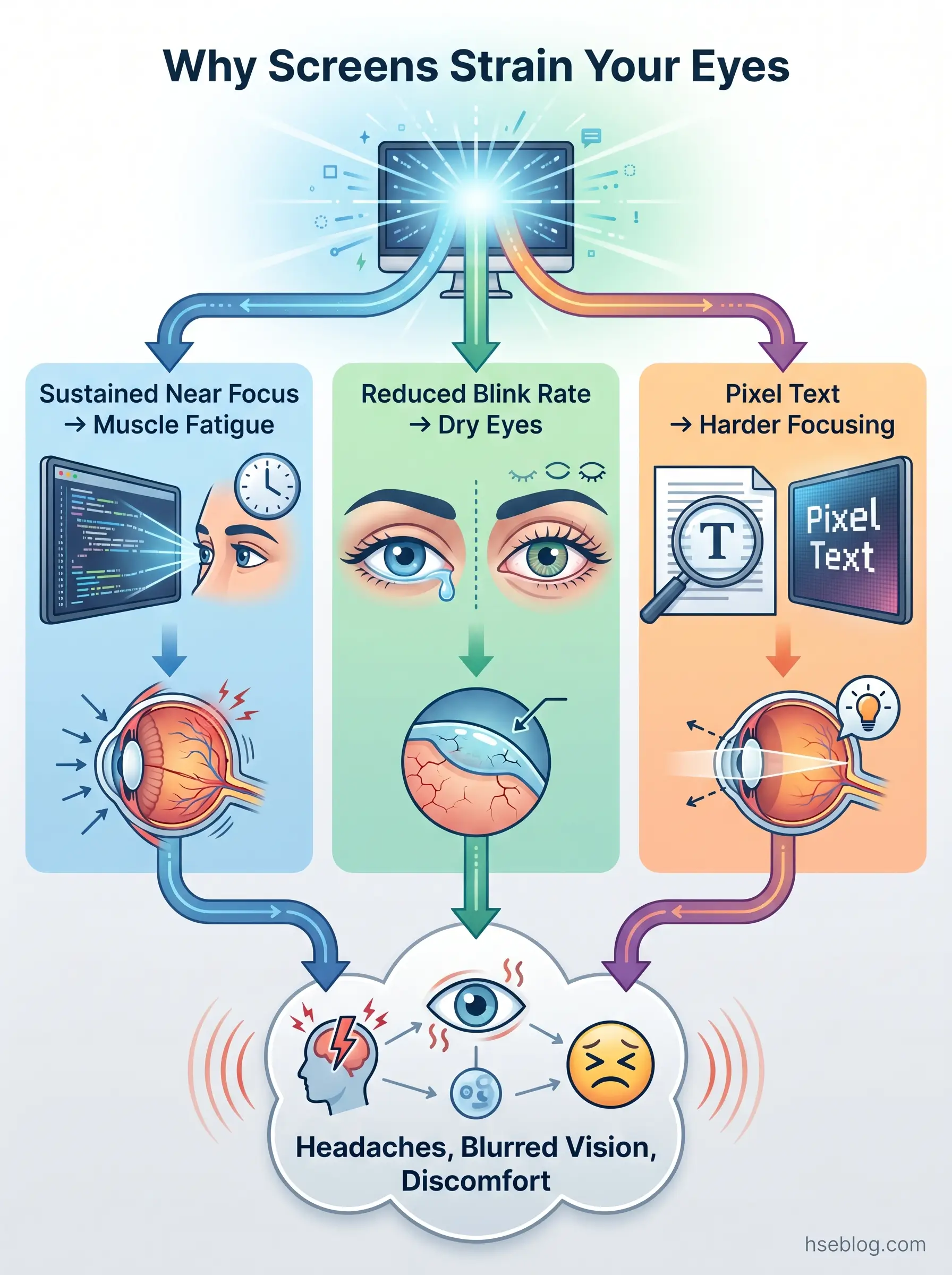
Three biomechanical mechanisms explain why screens tax the eyes more than printed material. First, sustained near focus forces the ciliary muscle to hold the lens in a contracted state for hours, creating accommodative fatigue that worsens as the workday progresses. Second, blink rate drops involuntarily — research shows people blink three to five times less frequently during focused screen work compared to baseline (Sheppard & Wolffsohn, BMJ Open Ophthalmology, 2018). Each blink re-coats the corneal surface with a protective tear film; fewer blinks mean faster tear evaporation and drier, more irritated eyes. Third, screen text is composed of pixels with softer edges than printed characters, requiring the visual system to work harder to resolve each letter into sharp focus.
A pattern I consistently see in occupational health practice is that people experiencing these symptoms attribute them to general tiredness or stress and push through — especially in high-deadline environments where stepping away from the screen feels like lost productivity. That instinct is understandable, but it treats a correctable environmental and behavioural problem as an inevitable cost of office work.
Uncorrected or undercorrected refractive errors significantly worsen CVS symptoms. Someone with a mild astigmatism they have never had corrected may assume their headaches and eye fatigue are normal screen effects, when in reality a simple prescription would eliminate most of the discomfort. This is why corrective eyewear and professional eye exams appear later in this article not as optional extras, but as foundational controls.
10 Proven Tips to Reduce Eye Strain from Computer Screens
The tips below move from workspace setup — the foundational environmental controls — through to behavioural habits and professional interventions. This order is deliberate. Environmental controls reduce strain regardless of personal discipline; behavioural habits rely on sustained effort. Establishing the physical workspace correctly means the behavioural layer has less to compensate for.
1. Position Your Monitor at the Right Height and Distance
The AAO recommends a viewing distance of 20 to 26 inches (50 to 65 cm) — roughly arm's length — with the top of the screen at or slightly below eye level. This places the centre of the display approximately 10 to 15 degrees below the horizontal line of sight.
That downward gaze angle matters more than most people realise. When the eyes look slightly downward, the upper eyelid drops to cover more of the eye's surface, reducing the area of exposed cornea and slowing tear evaporation. The effect is modest for any single moment, but accumulated across a full workday it measurably reduces dry-eye symptoms.
Laptops used flat on a desk violate both principles simultaneously — the screen sits too low, forcing a downward head tilt that loads the cervical spine, while the keyboard sits at screen height, elevating the shoulders. A laptop riser paired with an external keyboard, or an external monitor altogether, resolves both problems. OSHA's computer workstation eTool supports this positioning guidance as part of its voluntary workstation checklist.
Watch For: Most people adjust their monitor once — usually the day they set up their desk — and never revisit it. Office moves, desk swaps, the shift to hybrid working from a kitchen table: each of these changes the geometry. A two-minute reassessment after any workspace change prevents weeks of unnecessary strain.
2. Adjust Screen Brightness and Contrast to Match Your Environment
A useful field test: hold a white sheet of paper next to your screen. If the screen glows brighter than the paper, it is too bright. If the paper looks noticeably brighter, the screen is too dim. The goal is approximate parity — the display should blend with its surroundings rather than standing out as either a light source or a dark rectangle.
In a typical office environment lit to 300–500 lux, a display brightness of around 100–150 cd/m² is a reasonable starting point. Contrast settings in the range of 60–70% work for most users as an initial reference (Cleveland Clinic guidance). Dark text on a light background remains generally easier to read for sustained text work, though preferences vary.
The overlooked variable is that brightness needs change throughout the day. Morning sunlight, overcast afternoons, and evening work under artificial light all shift the ambient conditions. Auto-brightness features on modern displays handle this automatically; older monitors require manual adjustment. Seasonal shifts matter too — a brightness setting comfortable in a dim winter office may be inadequate against summer daylight flooding through windows.
3. Reduce Glare from Lighting and Reflections
Glare operates through two pathways, and distinguishing them determines the right fix. Direct glare comes from light sources in the field of vision — overhead fluorescents, uncovered windows behind the user, or a desk lamp poorly positioned. Reflected glare comes from light bouncing off the screen surface back into the eyes.
Repositioning the screen so it sits perpendicular to windows — rather than directly facing or backing onto them — eliminates the most common source of direct glare. Blinds, curtains, or adjustable window film manage daylight that repositioning alone cannot fix. For overhead lighting, diffuser panels over fluorescent tubes soften the harshness. Anti-glare screen filters provide a retrofit solution for displays with glossy finishes, and anti-reflective coatings on prescription lenses reduce reflected glare for glasses wearers. Matte-finish monitors reduce specular reflections significantly compared to glossy panels.
Field Test: Cup your hands above your eyes like a visor for a few seconds while looking at your screen. If your eyes immediately feel more comfortable, you have been tolerating overhead glare you had stopped noticing. People acclimatise to glare surprisingly quickly — it takes deliberate testing to uncover it.
4. Follow the 20-20-20 Rule
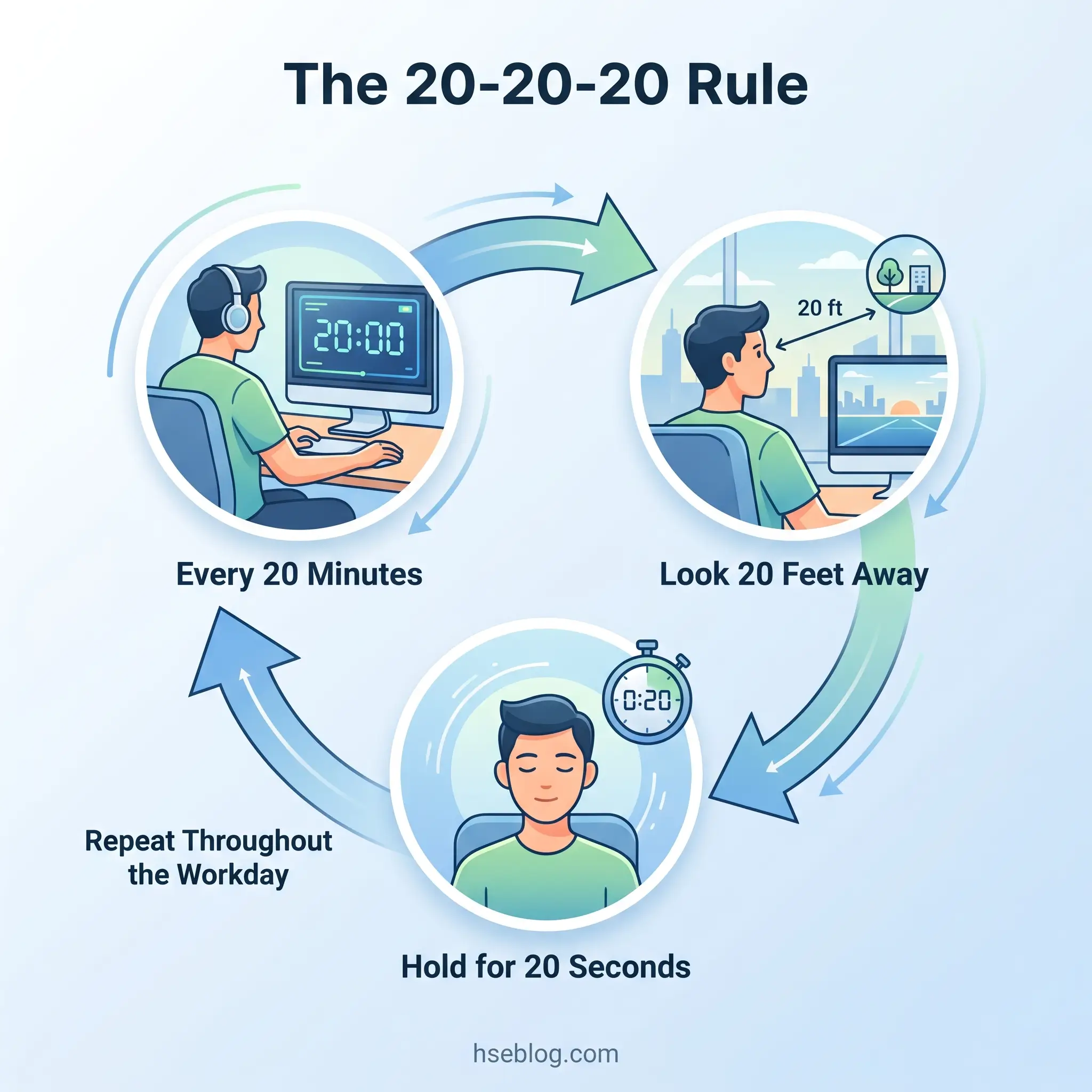
Every 20 minutes, shift your focus to something at least 20 feet (6 metres) away for at least 20 seconds. The physiological purpose is straightforward: it releases the ciliary muscle from sustained contraction, allowing the lens to return to its relaxed, distance-focused shape. This is endorsed by the AAO, the AOA, Harvard Health, and the Cleveland Clinic.
A 2023 study published in contact-lens research validated the rule's effectiveness for reducing dry-eye symptoms and improving tear-film stability among screen users. The evidence base is sound. The problem is not whether the rule works — it is whether anyone actually does it.
The judgment call for practitioners is how to make adherence realistic. Clock-watching fails almost immediately; most people lose track of time during focused work. Timer apps and OS-level break reminders (built into both Windows and macOS) provide automated prompts. But the most effective implementation I have observed in workplace programmes is linking the break to an existing workflow trigger — every time you send an email, save a file, or finish a task, look away. Tying the new habit to an existing action removes the need for clock awareness.
Combining the distance gaze with deliberate, full blinks during those 20 seconds addresses both accommodative fatigue and tear-film replenishment simultaneously.
5. Blink More Frequently and Deliberately
Normal blink rate sits at roughly 15 to 20 blinks per minute. During concentrated screen work, that drops to about a third — an involuntary suppression that occurs regardless of awareness (Sheppard & Wolffsohn, 2018). The consequence is predictable: less tear-film renewal, faster evaporation, and the gritty, dry sensation that builds across the afternoon.
What makes this worse is that the blinks that do occur during screen work tend to be incomplete — partial closures that fail to coat the lower portion of the cornea. The result is a zone of exposed, drying corneal surface at the bottom of the eye, exactly where irritation concentrates.
Deliberate blink exercises help. A full, slow blink — consciously closing the lids completely, pausing briefly, then opening — performed every few minutes re-establishes the tear film. Preservative-free artificial tears provide supplementary relief when environmental dryness is severe, though they should be preservative-free if used more than four times daily to avoid the irritation that preservatives themselves can cause over repeated application.
Watch For: Air conditioning vents, heating units, and desk fans aimed toward the face create a drying microclimate that defeats blinking no matter how disciplined the effort. Before investing in eye drops, check whether air is flowing directly across your eyes from above or from the side. Redirecting a single vent can be more effective than any drop regimen.
6. Optimise Your Workspace Lighting
This addresses the ambient environment rather than the screen-specific glare covered in Tip 3. The principle is that workspace lighting for screen-dominant tasks should be approximately half the brightness that traditional office lighting delivers.
Most office lighting was designed for paper-based work, where high ambient brightness helped legibility. That same brightness becomes counterproductive when the primary task involves staring at a self-illuminated screen — the mismatch between a bright room and a moderate screen creates contrast fatigue. Removing excess fluorescent tubes from overhead fixtures, switching to indirect uplighting, or using adjustable task lamps for paper reading while keeping ambient light lower are all practical controls.
Workers over 50 face a specific tension here. Aging eyes need brighter light to read printed documents, but that same brightness makes screen work less comfortable. The resolution is not a compromise — it is separation: adjustable task lighting for paperwork, moderate ambient lighting for screen work. Both can coexist with the right lamp placement.
Audit Point: Walk through an open-plan office and count how many workstations sit directly beneath banks of overhead fluorescent tubes while workers squint at their screens. The lighting was designed for a different era of work, and the mismatch has never been corrected. A lighting audit specific to screen-based work is one of the highest-impact, lowest-cost ergonomic improvements an HSE officer can recommend.
7. Upgrade or Adjust Your Display Settings
Display hardware and software settings directly affect how hard the eyes work. A few adjustments reduce that load measurably.
Refresh rate matters less on modern LCD panels than it did on old CRT monitors — CRTs flickered visibly below 75 Hz, while LCDs maintain a stable image. However, higher refresh rates (90 Hz and above) still produce smoother motion and marginally less visual fatigue on some panels. Resolution has a more direct effect: higher-resolution displays render sharper text, reducing the per-character focusing effort the eyes perform thousands of times per hour. If increasing resolution makes text too small, the correct response is to scale text size up in the operating system settings — increasing font size to at least a 12-point equivalent — rather than leaning closer to the screen.
Colour temperature controls ("Night Shift" on macOS and iOS, "Night Light" on Windows) shift the display toward warmer tones by reducing blue-light emission. This may benefit sleep quality when used in the hours before bed, since blue-light exposure suppresses melatonin production. However — and this is a distinction competitors frequently blur — reducing blue light is a circadian-rhythm intervention, not an eye-strain intervention. The AAO has stated explicitly that there is no strong evidence that blue light from digital devices causes eye strain. The section later in this article addresses this in full.
High-contrast accessibility modes built into both Windows and macOS can benefit users with low vision or extreme light sensitivity, and are worth testing even by users who have not previously considered them.
8. Use Appropriate Corrective Eyewear
Uncorrected or outdated prescriptions are one of the most significant — and most fixable — contributors to screen-related eye fatigue. When vision is not properly corrected, the eyes compensate by over-accommodating: the ciliary muscle works harder and longer to force the lens into focus, accelerating the very fatigue that the previous tips aim to reduce.
The distinction between general-prescription glasses, reading glasses, and computer-specific prescription glasses is often poorly understood. Standard reading glasses are optimised for a focal distance of roughly 30–40 cm — closer than a typical monitor. General-distance glasses correct for far vision. Computer glasses sit in between, tuned to the 50–65 cm range where a monitor typically sits. For workers who spend their day at a screen, this intermediate correction can reduce accommodation demand substantially.
Contact-lens wearers face an additional challenge: lenses sit on the corneal surface and reduce tear-film stability, compounding the blink-rate problem described earlier. Switching to glasses for extended computer sessions is a practical option worth considering.
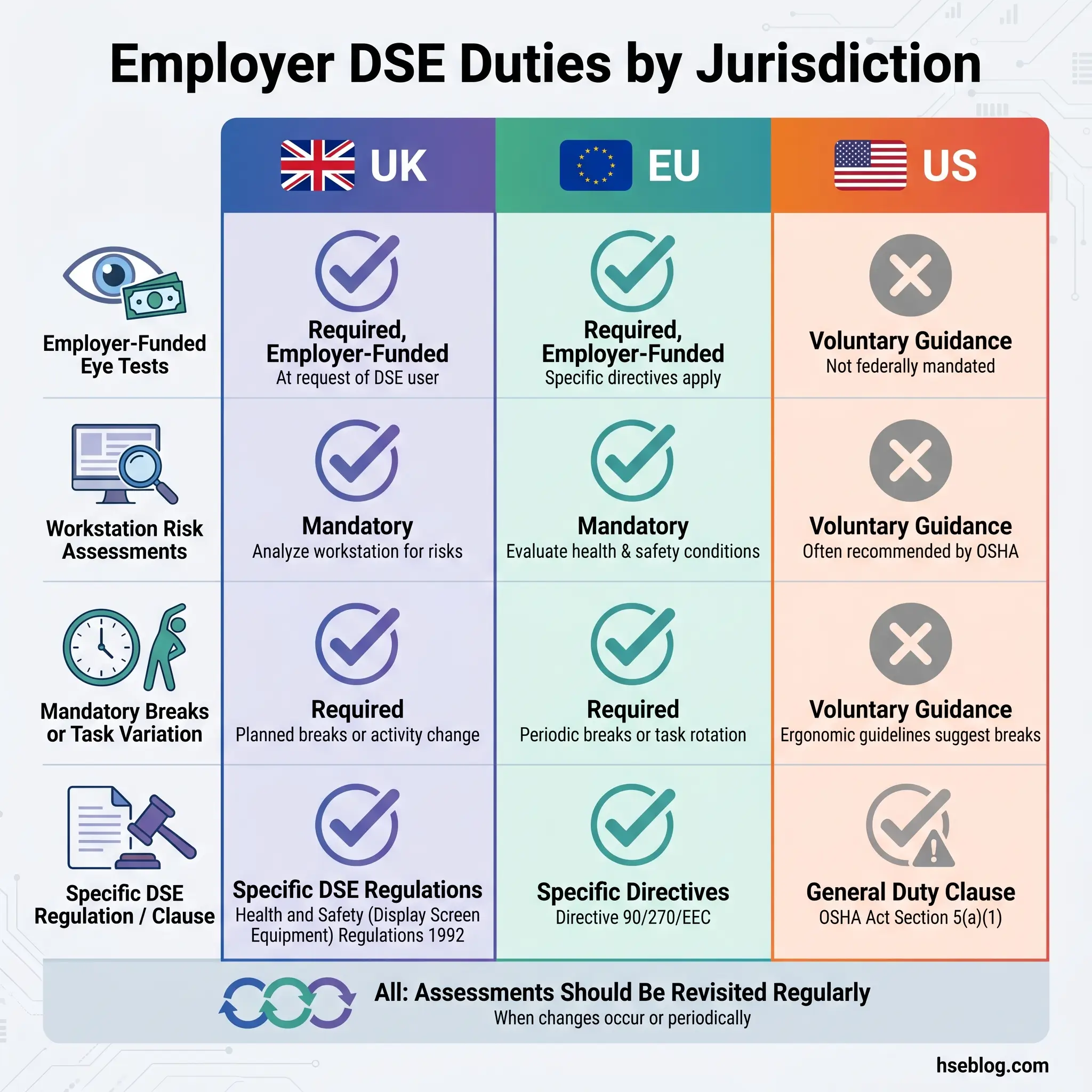
Regular comprehensive eye exams — at least annually — remain the single most important preventive measure. Under the UK's Health and Safety (Display Screen Equipment) Regulations 1992, Regulation 5, employers must provide and fund eye tests for display screen equipment (DSE) users on request, and must fund corrective lenses if they are needed solely for DSE work. This is one of the most underused employee entitlements in UK workplaces. The HSE's guidance on DSE eye tests outlines these obligations in detail. Many workers are entirely unaware of this right, and many employers do not proactively communicate it.
9. Take Regular Breaks and Vary Your Tasks
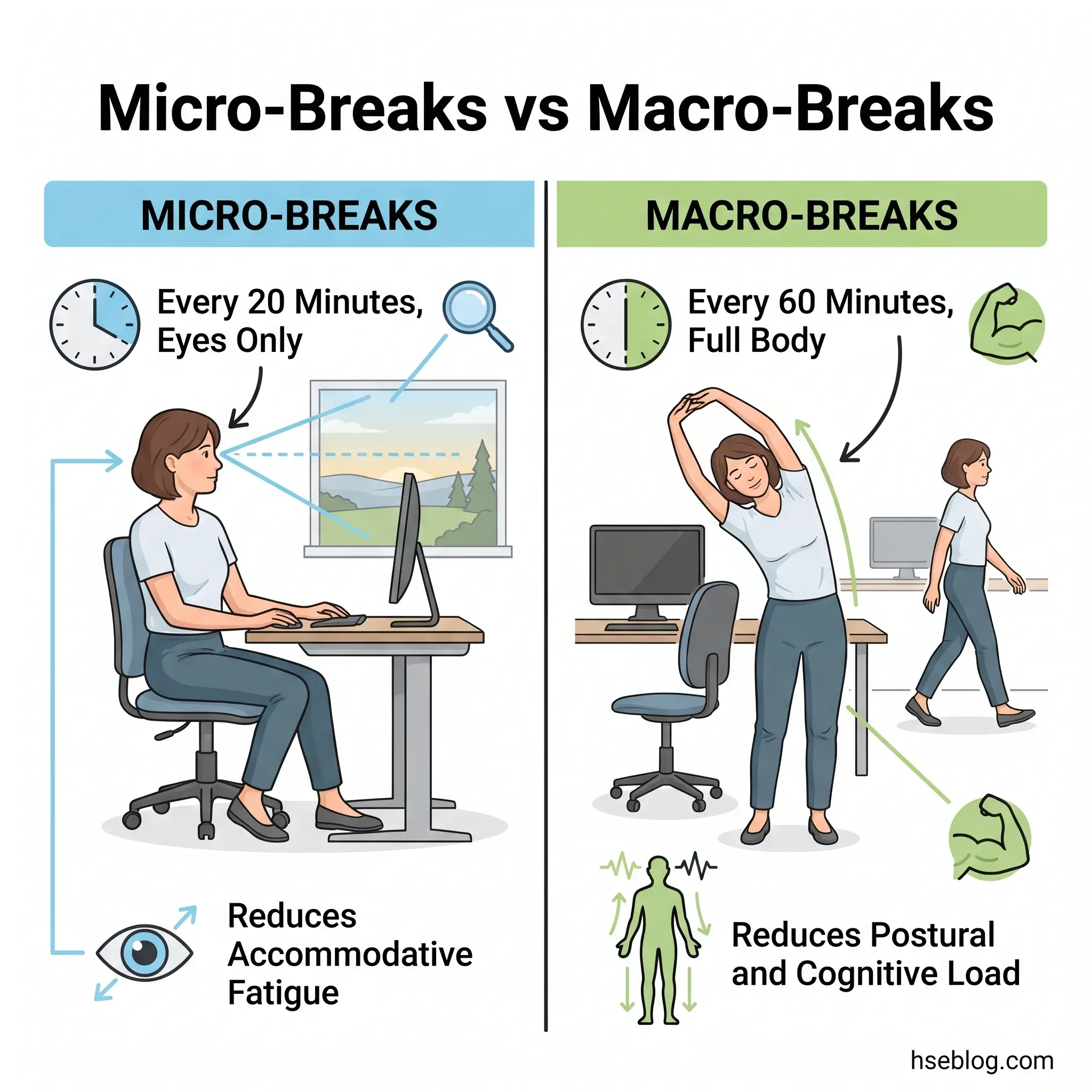
The 20-20-20 rule addresses the eyes. Macro-breaks address the entire system — musculoskeletal fatigue, postural load, cognitive depletion, and the cumulative visual strain that micro-breaks alone cannot fully offset. Standing up, walking away from the desk, and stretching for five to ten minutes at least every hour represents a different category of control.
HSE UK guidance states that DSE work should be periodically interrupted by breaks or changes of activity. The EU's Directive 90/270/EEC codifies this more explicitly, requiring employers to plan work activities so that screen use is periodically interrupted by breaks or changes in task. OSHA's computer workstation eTool recommends breaks every 20 to 30 minutes as voluntary best practice.
The highest-risk workers for sustained, unbroken screen exposure are those whose jobs offer no natural task variation — data-entry operators, call-centre staff, software developers on deadline, financial analysts during reporting periods. For these roles, break discipline cannot rely on individual initiative. It has to be engineered into workflows: scheduled stand-up meetings that require walking to a different room, task rotation built into shift patterns, or enforced screen-lock intervals that prompt movement.
Combining different tasks throughout the day — phone calls, face-to-face discussions, walking to collect a printout — introduces visual variety that screens alone cannot provide. The solution is structural, not motivational.
10. Manage Air Quality and Humidity Around Your Workstation
This tip appears last because it addresses an environmental factor that most eye-strain advice either mentions in passing or ignores entirely — yet it directly amplifies the blink-rate problem that underpins much of digital eye strain.
Low-humidity environments accelerate tear evaporation. In winter, central heating can drop indoor relative humidity below 20%. Air-conditioned offices in summer often run at similarly low humidity levels. The comfortable range for both general comfort and ocular surface health is typically 40–60% relative humidity. When the air is dry, even a normal blink rate produces an inadequate tear film, and the suppressed blink rate of screen work makes the deficit worse.
Practical controls are straightforward. Desktop humidifiers placed near the workstation raise local humidity without affecting the entire office climate system. Redirecting air-conditioning vents or heating ducts so they do not blow directly across the user's face eliminates the most aggressive drying vector. Positioning the desk so that the airflow path does not cross the eye surface is a simple spatial adjustment that many workers have never considered.
This tip sits at the intersection of occupational health and environmental controls — precisely the territory where HSE-focused advice should add value beyond the standard "blink more" recommendation. Controlling the air environment makes every other tip on this list more effective.
When to See an Eye Doctor About Screen-Related Eye Strain
Most CVS symptoms resolve within 30 minutes to an hour after stopping screen work. That recovery window is the key diagnostic signal. If symptoms persist beyond it, something more than ordinary screen fatigue may be involved.
Clear escalation criteria warrant professional assessment: persistent blurred vision that does not clear with rest, new onset of double vision, eye redness or pain that worsens rather than resolves, and severe or progressively worsening headaches. These symptoms can mask underlying conditions — uncorrected astigmatism, convergence insufficiency, or dry-eye disease — that require diagnosis and treatment beyond workplace ergonomic adjustments.
The AAO recommends comprehensive eye exams at least annually, and more frequently for individuals over 60 or those with existing conditions. Annual exams catch refractive changes that develop gradually — changes the individual may not notice because the deterioration is slow enough to normalise.
A common pattern is that workers delay seeking care because they have categorised their symptoms as "just screen tiredness" rather than something a clinician can address. The differentiating question is simple: do your symptoms fully resolve within half an hour of stopping screen work? If the answer is consistently no, book the appointment.
Reminder: This article provides general occupational health and safety knowledge. It is not medical advice. Workers with persistent eye symptoms, vision changes, or eye pain should consult an optometrist, ophthalmologist, or qualified medical professional for individual assessment and treatment.
What Are Employers Required to Do About Eye Strain at Work?
The regulatory landscape for display screen equipment varies significantly across jurisdictions, but the core principle is consistent: employers bear responsibility for workstation conditions, not just the workers who sit at them.
United Kingdom — DSE Regulations 1992
The Health and Safety (Display Screen Equipment) Regulations 1992 impose specific, enforceable duties on employers. Regulation 5 requires employers to provide and fund eye and eyesight tests for employees classified as DSE users — on request, at no cost to the worker. If the test identifies a need for corrective lenses specifically for DSE work, the employer must fund those lenses as well. Beyond eye tests, employers must conduct workstation risk assessments for each DSE user, ensure that workstations meet minimum ergonomic requirements, and plan work so that screen use is periodically interrupted by breaks or changes of activity. HSE's guidance document INDG36 provides the practical framework for these assessments.
European Union — Directive 90/270/EEC
EU member states transpose this directive into national law, but the minimum requirements are consistent: employers must conduct workstation analyses, provide eye tests at regular intervals and when employees report visual difficulties, ensure periodic interruption of screen work, and provide training on workstation use. The directive dates from 1990, and the European Commission's Strategic Framework on OSH 2021–2027 announced a review to update it for modern digital work patterns — a process that remains ongoing through 2025–2027 (European Commission, COM(2021) 323 final). Until that review concludes, the 1990 directive remains the binding standard.
United States — OSHA
The US has no specific federal standard for display screen equipment. OSHA's regulatory approach relies on the General Duty Clause — Section 5(a)(1) of the Occupational Safety and Health Act — which requires employers to provide a workplace free from recognised hazards. In practice, OSHA's computer workstation eTool provides voluntary guidance on monitor positioning, lighting, seating, and break practices, and represents the agency's recommended approach even in the absence of a dedicated regulation. OSHA's computer workstation setup guide outlines this checklist in detail.
The implementation gap
The practical failing across all jurisdictions is not the absence of regulation — it is the absence of follow-through. DSE assessments are frequently completed once during employee onboarding and never revisited, even after desk moves, transitions to hybrid or remote work, the addition of a second monitor, or employee reports of discomfort. A DSE assessment conducted three years ago for a different desk in a different building under different lighting conditions provides no protection. Employers and HSE officers should treat workstation assessments as living documents, triggered by change, not filed as one-time compliance artefacts.
Do Blue Light Glasses Reduce Eye Strain? What the Evidence Shows
This is the most persistent misconception in the digital eye strain space, and it deserves direct treatment rather than a footnote.
The AAO has stated explicitly that it does not recommend blue-light-blocking glasses for the purpose of reducing eye strain from computer screens. The reasoning is evidence-based: the primary mechanisms of computer vision syndrome — accommodative fatigue, suppressed blink rate, and environmental factors — are not driven by the wavelength of light the screen emits. Blue light from digital screens is a small fraction of the blue light people receive from sunlight during a normal day.
Cochrane-level evidence reviews have similarly found no strong support for blue-light-filtering lenses as an eye-strain intervention. The glasses are not harmful, and some users report subjective comfort — which may reflect tint-related contrast changes or placebo response rather than a blue-light-specific mechanism.
The nuance that matters: blue light may genuinely affect sleep. Exposure to blue-wavelength light in the hours before bedtime suppresses melatonin production, potentially disrupting circadian rhythm and sleep quality. This is a valid reason to use night-mode display settings in the evening. But sleep disruption and eye strain are different problems with different causes, and conflating them has driven a consumer market for glasses that solve neither one as effectively as the simpler behavioural changes described in this article.
The practical takeaway for HSE professionals and informed workers: if someone is experiencing digital eye strain, the most effective interventions are monitor positioning, lighting, blink rate, break frequency, and corrective eyewear — not lens tint. Addressing the blue-light question honestly and with reference to the evidence builds trust with workers who might otherwise dismiss all ergonomic advice as similarly unsubstantiated.
Frequently Asked Questions
Can computer screens permanently damage your eyes?
No. The AAO confirms that digital eye strain causes temporary discomfort — not permanent structural damage to the eyes. Symptoms like dryness, blurred vision, and headaches typically resolve after screen work stops. However, persistent symptoms can mask underlying conditions such as uncorrected refractive errors or dry-eye disease that do require clinical treatment. If symptoms do not resolve within 30 minutes to an hour of stopping work, a comprehensive eye exam is warranted.
How far should your monitor be from your face?
The recommended distance is 20 to 26 inches (50 to 65 cm), approximately arm's length. The centre of the screen should sit roughly 10 to 15 degrees below horizontal eye level, which promotes a slight downward gaze that partially closes the eyelids and reduces tear evaporation. Laptop users working without a riser or external monitor typically sit much closer and at a steeper neck angle, which compounds both eye and cervical strain.
Does dark mode reduce eye strain?
Dark mode reduces overall screen brightness and may feel more comfortable in dim environments, but there is no conclusive clinical evidence that it significantly reduces CVS symptoms. Some research suggests that dark text on a light background is easier to read for sustained periods because pupil constriction under brighter conditions increases depth of field and sharpens focus. The best approach is to match screen brightness to ambient conditions regardless of colour scheme.
Is eye strain worse with dual monitors?
It can be, particularly when the monitors are at different heights, distances, or angles. The eyes are forced to constantly readjust focus and convergence as gaze moves between screens, and the head turns required can compound neck and shoulder strain. Aligning both monitors at the same height and viewing distance, and angling them symmetrically so the user sits at the centre of the combined display area, significantly reduces this effect.
Do employers have to pay for eye tests for computer users?
In the UK, yes. Under the Health and Safety (Display Screen Equipment) Regulations 1992, Regulation 5, employers must fund eye and eyesight tests for DSE users on request and must pay for corrective lenses if they are needed specifically for screen work. The EU's Directive 90/270/EEC contains similar provisions transposed into each member state's national law. In the US, there is no specific federal requirement, though employer wellness programmes may cover vision screening. Workers should check their jurisdiction's specific obligations.
How long does it take for eye strain to go away?
Symptoms typically resolve within minutes to an hour after sustained screen work ends. The ciliary muscle relaxes, blink rate normalises, and the tear film replenishes. If symptoms persist significantly beyond that recovery window — or worsen over days and weeks rather than resolving — this pattern suggests an underlying condition rather than ordinary screen fatigue, and professional evaluation is recommended.
Conclusion
The industry-wide gap on digital eye strain is not knowledge — it is implementation. Most workers can recite the 20-20-20 rule. Few can describe the last time they adjusted their monitor height, checked their workspace humidity, or asked their employer about a DSE eye test they may be entitled to. The advice exists; the action lags behind it.
The single highest-impact change for most screen-heavy workers is recognising that digital eye strain is primarily an environmental and ergonomic problem, not a personal-discipline problem. Fixing the workspace — monitor position, lighting, glare, airflow, humidity — reduces strain structurally, before any behavioural habit is required. This reframing shifts responsibility from "try harder to remember breaks" toward "set up the workspace so it protects you by default."
For HSE professionals, the takeaway is sharper. DSE assessments that were conducted once and filed should be reopened and reviewed against current conditions. The regulatory frameworks across the UK, EU, and US all expect ongoing assessment, not one-time compliance. And the most underutilised control in this space — employer-funded eye testing under the UK DSE Regulations — costs almost nothing relative to the productivity and wellbeing gains it delivers. If your organisation has DSE users who have never been offered an eye test, that is not a minor administrative gap — it is a missed obligation with a straightforward fix.